Essential Laptop Accessories for Remote Workers
Remote work has transformed from a perk into a permanent reality for millions of professionals. Yet many remote workers continue to hunch over laptop screens on kitchen tables, squinting at tiny displays, and dealing with tangled cables. This setup might work for short bursts, but over months and years, poor workstation ergonomics cause neck pain, eye strain, reduced productivity, and long-term health issues. The good news is that a relatively small investment in the right laptop accessories creates a professional workstation that matches or exceeds any office desk setup.
This guide covers every essential accessory that transforms a bare laptop into a productive, ergonomic, and professional remote workstation. Each recommendation considers portability, because modern remote workers often split time between home, coffee shops, co-working spaces, and travel destinations. The accessories you choose should enhance your productivity everywhere, not just at a single fixed location.
The 80/20 Rule of Remote Work Gear: You do not need every accessory listed here on day one. Start with the laptop stand, external keyboard, and external mouse. These three items deliver 80 percent of the ergonomic and productivity benefit. Then add accessories progressively as your needs evolve and your budget allows.
1. Laptop Stand: The Foundation of Ergonomics
The laptop screen sits far too low when placed flat on a desk, forcing your neck into a forward-flexed position that causes chronic strain. A laptop stand raises your screen to eye level, creating the foundation for proper ergonomic posture. Look for stands with adjustable height and angle, aluminium construction for stability and heat dissipation, and a collapsible design that packs flat for travel.
Once you raise the laptop screen, you need an external keyboard and mouse to maintain proper arm and wrist position. This pairing is non-negotiable; using a laptop stand without external peripherals creates wrist strain from reaching up to the elevated keyboard. The stand and external input devices work together as a system.
2. External Keyboard and Mouse
A quality external keyboard and wireless mouse transform your typing experience and eliminate the cramped hand positions that laptop keyboards force. Mechanical keyboards provide tactile feedback that improves typing speed and accuracy, though they add weight for travel. Low-profile scissor-switch keyboards offer a quieter, thinner alternative that packs more easily.
For the mouse, choose a wireless model with ergonomic shaping that supports your hand naturally. Vertical mice reduce wrist pronation and help prevent repetitive strain injury during long work sessions. A compact travel mouse with a protective case works well for mobile workers who need portability without sacrificing comfort.

3. Portable Monitor
Screen real estate directly impacts productivity. Studies consistently show that dual monitors increase work output by 20 to 30 percent for tasks involving data comparison, document drafting, coding, and communication. A portable monitor connects to your laptop via a single USB-C cable and provides an additional 15 to 17 inches of workspace while adding only 500 to 900 grams to your carry weight.
Choose a portable monitor with at least 1080p resolution, IPS panel for accurate colours and wide viewing angles, and USB-C connectivity that provides both video signal and power from your laptop. Some models include built-in speakers and adjustable stands. For travellers, look for models with protective covers that double as stands and fit in laptop bag pockets.
4. Docking Station or USB Hub
A docking station eliminates the frustration of constantly plugging and unplugging multiple devices. Connect your monitors, keyboard, mouse, ethernet cable, external storage, and charging cable to the dock. When you sit down to work, one single USB-C connection activates your entire workstation. When you leave, one cable disconnect and you are mobile again.
| Feature | USB-C Hub | Docking Station |
|---|---|---|
| Portability | High, pocket-sized | Moderate, desk-bound |
| Number of ports | 5-8 ports typical | 10-15 ports typical |
| Dual monitor support | Limited or single | Full dual 4K support |
| Ethernet port | Some models | Standard |
| Power delivery | 60-100W typical | 100W+ standard |
| Price range | GBP 20-60 | GBP 80-200 |
| Best for | Mobile workers | Fixed home office |
If you work primarily from one location, a full docking station provides the most connectivity and stability. For workers who frequently change locations, a compact USB-C hub that fits in your pocket offers a better balance of capability and portability.
5. Quality Webcam
Video calls have become the primary mode of professional communication for remote workers. Your laptop's built-in webcam typically produces grainy, poorly lit video that undermines your professional presence. An external webcam with 1080p or 4K resolution, auto-focus, and good low-light performance makes a dramatic difference in how colleagues and clients perceive you during calls.
Position the webcam at eye level using the laptop stand or a separate monitor mount. The camera should look slightly down at your face rather than up your nose. Models with built-in ring lights or adjustable colour temperature LEDs eliminate the need for separate desk lighting and ensure consistent, flattering illumination regardless of room conditions.

6. Noise-Cancelling Headphones
Remote work environments are full of distractions: household noise, construction, family members, and ambient sounds that destroy concentration. Active noise-cancelling headphones create a controlled auditory environment that protects your focus. Over-ear models provide superior noise cancellation and comfort for extended wear, while in-ear models offer portability and discreetness for shared spaces.
Battery life matters significantly for remote workers. Choose headphones providing at least 20 hours of active noise cancellation on a single charge. Quick-charge capability that provides several hours of use from a 15-minute charge prevents frustrating mid-day dead battery situations. Multipoint connectivity lets you connect to your laptop and phone simultaneously, so you never miss an important call.
7. Portable SSD for Data Security
Data loss can devastate a remote worker whose entire career lives on a single device. A portable SSD provides fast, reliable backup and file transfer in a shock-resistant package that weighs less than a smartphone. Samsung T7, SanDisk Extreme, and Crucial X9 models offer 1TB of storage with read speeds exceeding 1,000MB/s, making file transfers feel almost instantaneous.
Use your portable SSD for automated daily backups, transporting large files between devices, and creating a physical archive of critical work documents. The 3-2-1 backup rule applies: three copies of your data, on two different media, with one offsite. Your portable SSD serves as the local copy while cloud storage handles the offsite requirement.
8. Cooling Pad
Laptop processors generate significant heat during intensive tasks like video editing, data analysis, or extended video calls. Excessive heat reduces performance through thermal throttling, shortens component lifespan, and makes the keyboard uncomfortably warm. A cooling pad with built-in fans directs airflow underneath your laptop, reducing temperatures by 5 to 10 degrees Celsius during demanding tasks.
Choose a slim, lightweight cooling pad with adjustable fan speeds, USB pass-through charging, and a quiet motor that does not distract during calls. Aluminium surface pads provide passive heat dissipation even with fans turned off. Most quality cooling pads fold flat for storage in a laptop bag when you are not working at your desk.
9. Adapter Collection
The modern laptop sacrifices ports for thinness, leaving remote workers needing adapters for legacy devices, external displays, storage media, and wired internet. Build a small adapter collection that covers the connections you actually encounter: USB-C to USB-A for older peripherals, USB-C to HDMI for projector presentations, SD card reader for media transfer, and USB-C to ethernet for stable internet connections.
Keep adapters organised in a small tech pouch with labelled compartments. This prevents the frustration of knowing you have an adapter but not being able to find it when needed. Invest in quality adapters from reputable brands; cheap adapters cause connection failures, screen flickering, and data corruption that waste time and create unnecessary stress.
10. Cable Management System
A remote workstation generates cables for every device: laptop charger, monitor cable, keyboard receiver, mouse receiver, phone charger, headphone cable, and more. Without organisation, these cables create a tangled mess that collects dust, creates frustration, and looks unprofessional on video calls.
Implement a cable management system using velcro ties to bundle excess length, under-desk cable trays to route cables out of sight, adhesive clips to anchor cables at specific points, and a cable management sleeve to combine multiple cables into a single clean bundle. Label both ends of each cable to identify them without tracing. A cable management box conceals power strips and charger bricks while providing ventilation to prevent overheating.

Backpack Organisation for Tech Accessories
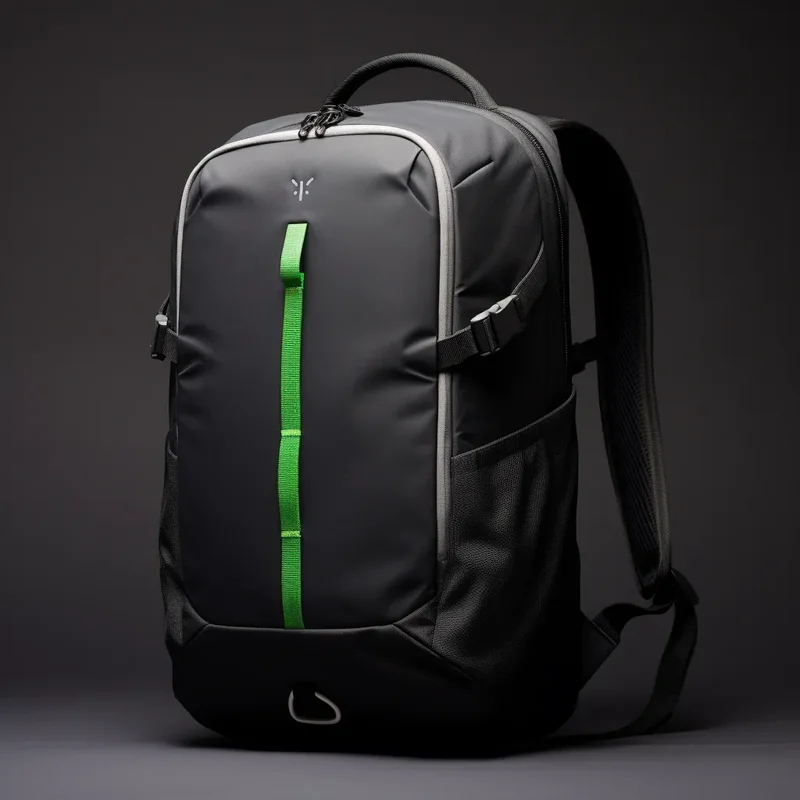
Remote workers who move between locations need a backpack that organises and protects their entire tech ecosystem. Look for bags with padded laptop compartments fitting your screen size, dedicated tablet sleeves, internal organiser panels with elastic loops for cables and adapters, a front-access tech pocket for quick retrieval at security checkpoints, and water-resistant fabric to protect electronics from rain.
Use small tech pouches within your backpack to group related items: a charging pouch with all cables and adapters, an audio pouch with headphones and microphone, and a peripherals pouch with your mouse and keyboard. This organisation system means you can grab one pouch when heading to a co-working space or client meeting without fumbling through your entire bag.
Ergonomic Considerations Beyond Accessories
Accessories alone do not create an ergonomic workstation. Your chair height, desk surface level, monitor distance, and lighting all contribute to long-term comfort and health. Position your monitor at arm's length with the top of the screen at or slightly below eye level. Your elbows should rest at 90 degrees when typing, with wrists straight and hands floating above the keyboard. Your feet should rest flat on the floor or on a footrest.
Lighting matters significantly for remote workers. Position your desk near natural light when possible, with the window to your side rather than behind or in front of you. For video calls, face a window or use a ring light positioned at eye level to create flattering, even illumination. Reduce screen glare with adjustable monitor brightness and blue light filters during evening work sessions to protect your sleep quality.
Building Your Remote Work Setup Progressively
You do not need to purchase everything at once. Follow this priority order based on impact and cost:
Phase 1 (Under GBP 80): Laptop stand, external keyboard, and external mouse. These three items transform your ergonomics and immediately improve comfort during long work sessions.
Phase 2 (Under GBP 150): Add a portable monitor and quality headphones. The additional screen space and noise isolation multiply your productivity and focus.
Phase 3 (Under GBP 250): Add a docking station or hub, portable SSD, and webcam. These items complete your workstation with professional connectivity, data security, and video call quality.
Phase 4 (Under GBP 300): Add a cooling pad, cable management system, and adapter collection. These items refine your setup for long-term comfort, organisation, and versatility.
Frequently Asked Questions
What are the most essential laptop accessories for remote work?
Laptop stand, external keyboard and mouse, portable monitor, docking station, quality webcam, noise-cancelling headphones, portable SSD, and cable management. These transform your laptop into a full workstation.
Do I need a docking station for remote work?
Highly recommended if you use multiple peripherals. A docking station connects everything with one cable, eliminating constant plugging and unplugging. USB-C hubs offer a portable alternative for mobile workers.
Is a portable monitor worth it for remote workers?
Absolutely. Dual monitors increase productivity by 20-30 percent. Portable monitors weigh under 900g, connect via USB-C, and fit in a laptop bag while providing meaningful workspace expansion.
What laptop stand should remote workers use?
Choose adjustable aluminium stands that raise your screen to eye level (20-26 inches from desk). Collapsible designs pack flat for travel. Always pair with external keyboard and mouse.
How do I organise cables for a remote workstation?
Use velcro ties, under-desk trays, adhesive clips, and cable sleeves. Label both ends of each cable. Route power along desk legs and use cable boxes to hide power strip clutter.
Should I get an external webcam?
Yes, if your built-in camera produces poor quality. External webcams with 1080p, auto-focus, and good low-light performance dramatically improve video call quality and professional presence.
What is the best portable storage for remote workers?
A portable SSD with 1TB capacity. Samsung T7, SanDisk Extreme, and Crucial X9 offer fast, shock-resistant storage in compact form factors essential for data backup and file transfer.
Remote Work Backpacks, Professionally Designed
We manufacture backpacks with dedicated tech compartments, organiser panels, padded laptop sleeves, and professional aesthetics perfect for remote workers. OEM and custom branding available.
Email: service@junyuanbags.com
WhatsApp: +86 17750020688